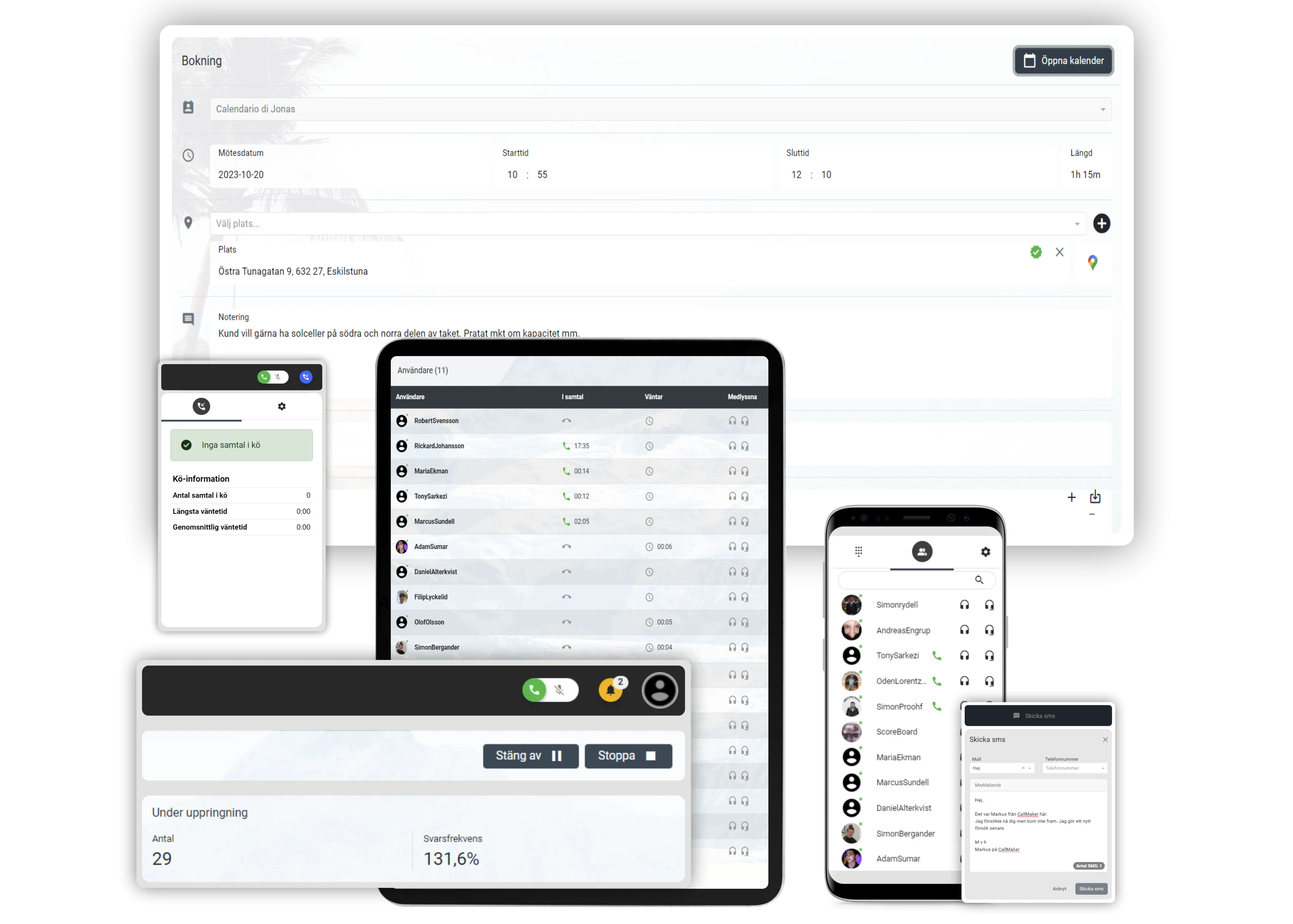
Ready-made templates
Start from a template – booking confirmation, order confirmation, reactivating customer cards, export to FTP or SMS on a specific outcome – or build from scratch.

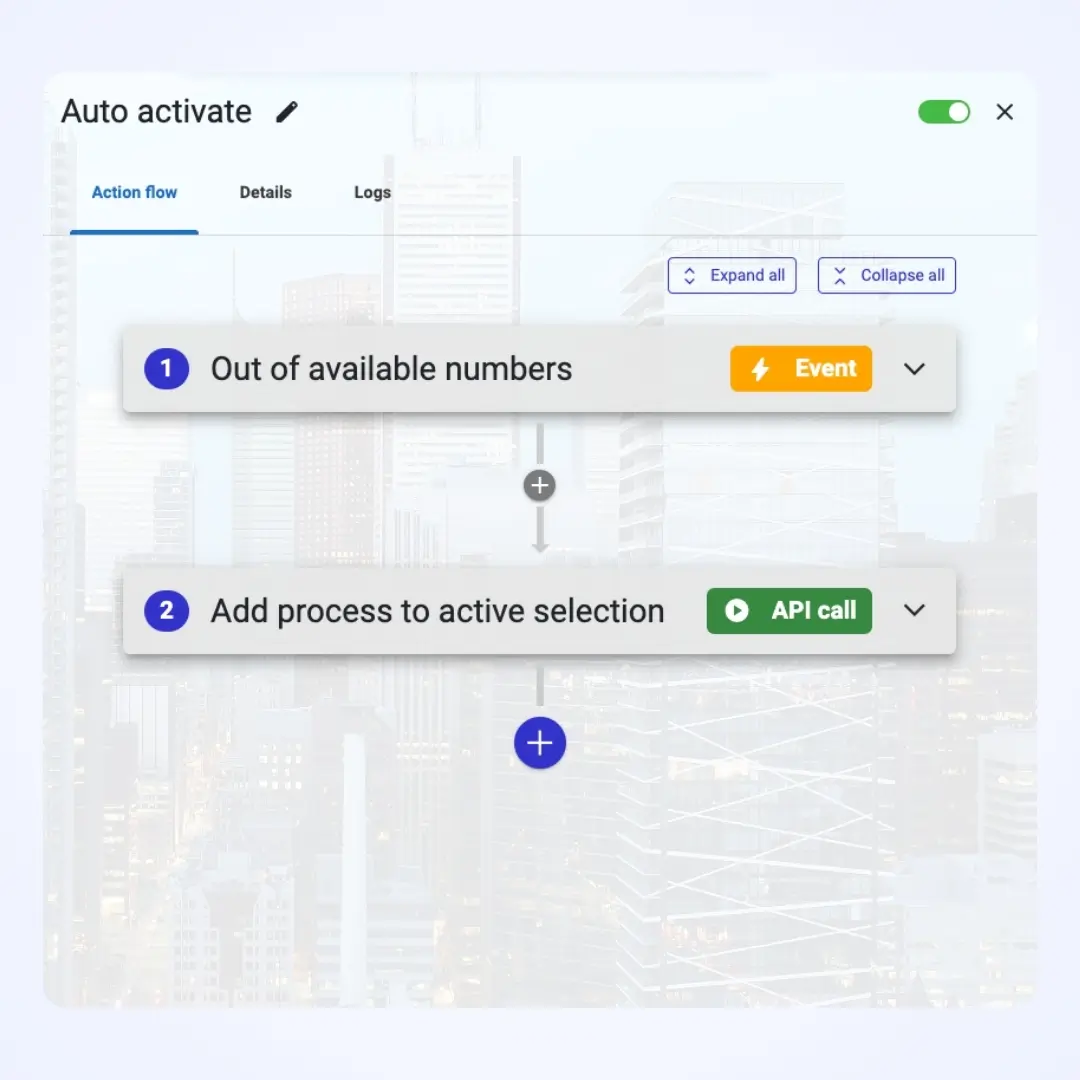
Write in plain language what you want the autopilot to do. The AI asks the follow-up questions it needs, proposes a plan and only builds the autopilot when you press Create.
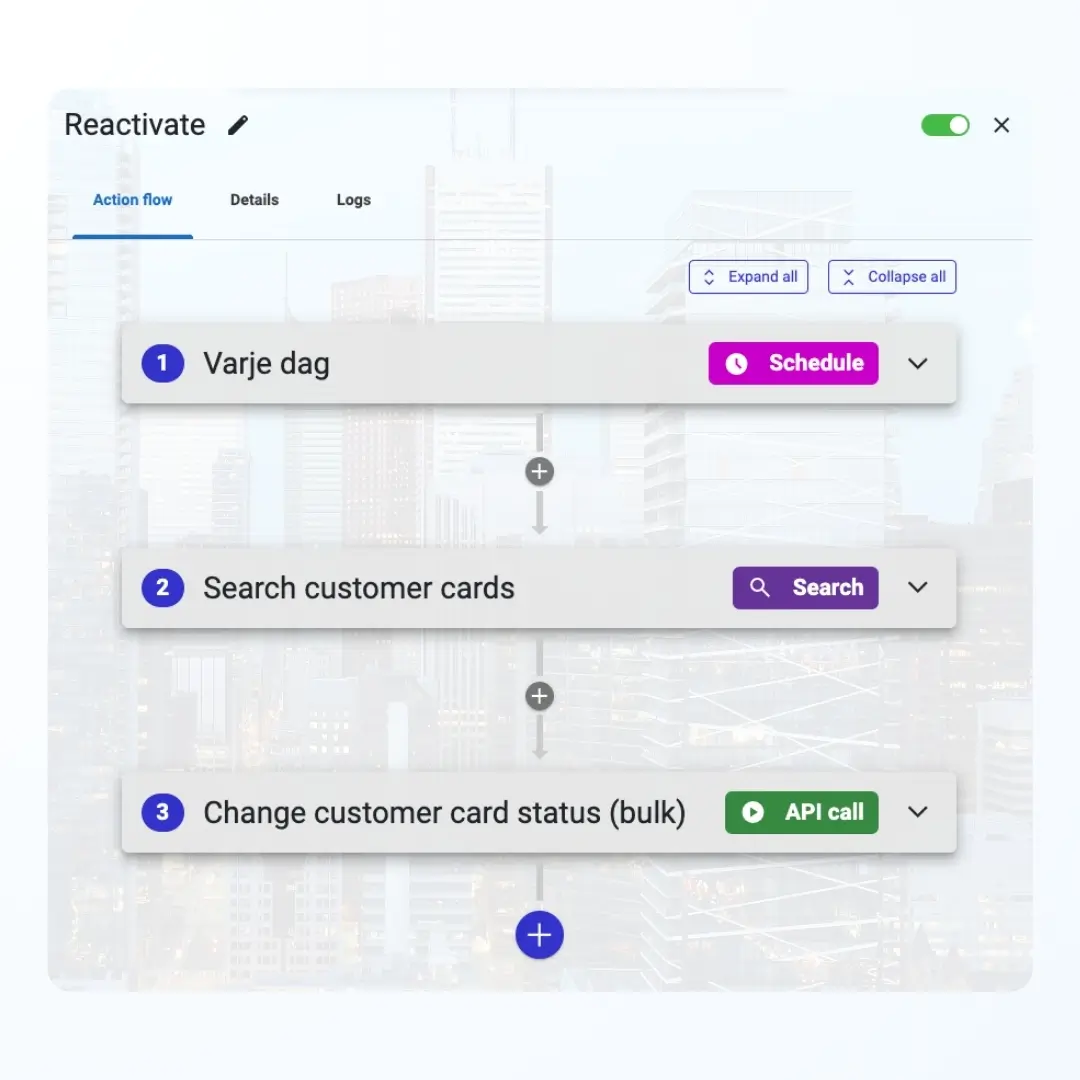
Every autopilot has a trigger that decides when it runs. Choose the one that suits the task.
Start when something happens: an order is placed, a booking is confirmed, a call ends, an SMS comes in or a list starts running out. Around fifty events to choose from.
Every hour, day, week or month, in five-minute steps and with or without weekends. If you need to run it right away, there's Run now.
Add a button to the customer card, processing, order, booking or user menu – with a dialog and choices before the run if you like.
Run an autopilot on an entire search result. The run happens in the background and you're notified when it's done.
Let an external system start the autopilot and get a response back, with HMAC verification of the request.
With custom triggers, one autopilot can start another, immediately or after a set delay – for example to follow up with a customer a few days after a meeting.

Set up your external applications once – address, authentication and requests – and reuse them in every autopilot. The response from a request can be used in the next step of the flow.
Callmaker only calls approved addresses, and passwords and keys never appear in the logs.
Incoming webhooks
Start autopilots from other systems and respond immediately or with data from the flow
Outgoing requests
GET, POST, PUT, PATCH and DELETE, with JSON, forms or files
Authentication
OAuth, Basic or an API key in a header
HMAC signing
Verify incoming and sign outgoing requests
Retries
Automatic retries if the recipient doesn't respond
REST API
Manage and run autopilots through Callmaker's API too
Start from a template – booking confirmation, order confirmation, reactivating customer cards, export to FTP or SMS on a specific outcome – or build from scratch.
Listen for around fifty events in orders, bookings, calls, SMS, lists and users.
Run every hour, day, week or month, in five-minute steps and with or without weekends.
Place autopilots as buttons on customer cards, processings, orders and bookings – for everyone or for administrators only.
Find customer cards, orders, bookings and calls within the flow, or run an autopilot on an entire search result in the background.
And/or conditions decide whether the flow continues, and split it into a path for success and one for failure.
Go through lists and search results, count and store values in variables – even between runs – and pause or end with an error.
Let one autopilot start another, immediately or after a set delay.
Send SMS – including within an ongoing conversation – emails with attachments, or a notification straight to a user in Callmaker.
Export data and statistics, create PDFs from templates, encrypt with PGP and send files and recordings to FTP.
Validate orders against the call recording, summarise calls, generate coaching notes and transcribe or anonymise recordings.
See every run step by step and replay a failed run from the step that went wrong. Logs are kept for 180 days.
Here is the complete list of triggers, events, searches, conditions, steps and functions in Autopilot – so you can see right away whether your flow can be built. Click a heading to show its content.
Every autopilot has exactly one trigger. It decides when the autopilot runs and what data is passed into the first step.
| Trigger | Starts when | Settings |
|---|---|---|
| Event | Something happens in the system | Choose one of 47 events (see Events below). |
| Schedule | A set time at a set frequency | Every hour (minute), every day (time of day), every week (weekday and time) or every month (day 1–31 and time). Minutes are set in five-minute steps. Run also on weekends can be selected for hourly, daily and monthly schedules. Run now starts the autopilot immediately. |
| Button | A user clicks a button | Place the button on the customer card, processing, order, booking or user. Optional dialogue before the run with your own text and answer buttons. |
| Button on search result | A user runs the autopilot on a search result | On search results for customer cards, processings, orders or bookings. Runs as a background task. |
| Webhook request | An external system calls a webhook | Choose an external application and webhook. HMAC validation of the request and the option to respond immediately or with data from the flow. |
With a custom trigger, one autopilot can start another, immediately or after a chosen delay.
Events that can start an autopilot with the Event trigger. Data from the event, such as the order, booking or call, can be used in every following step.
With the Search step, the autopilot retrieves records or data to use in later steps, for example to loop through a search result.
| Field type | Available operators |
|---|---|
| Text | Equal, Not equal, Equal to any of, Not equal to any of, Contains, Empty, Not empty |
| Integers and decimals | Equal, Not equal, Greater than, Less than, Greater than or equal to, Less than or equal to, Equal to any of, Not equal to any of, Empty, Not empty |
| Date, time and timestamp | Equal, Not equal, Greater than, Less than, Greater than or equal to, Less than or equal to, Empty, Not empty |
| Yes/no | Equal, Empty |
| Text block | Empty, Not empty |
An autopilot is a chain of steps. Each step has a name and can have its own note.
| Step | What it does |
|---|---|
| Function | Performs a function in the system – more than 110 to choose from (see All functions below). |
| Search | Searches for or retrieves data used in the following steps. |
| Filters | Decides whether the autopilot should continue and splits the flow into two paths. |
| Request to external application | Calls an API in another system. The response can be used in the following steps. |
| Response to webhook request | Sends a response based on a text template to the system that started the autopilot. |
| Loop | Performs one or more steps for each record in a list or search result, or a chosen number of times (max 20). Choose whether the loop continues or exits on error. |
| Loop action | Continue, exit or pause the loop (for up to 60 seconds). |
| Pause | Pauses the autopilot for up to 60 seconds. |
| Define variable | Creates a variable with a name, type and initial value. |
| Update variable | Changes a value with mathematical and other functions. |
| End with fail | Ends the run as failed with your own error message. |
This is what the Function step can do. Each parameter can take a fixed value or a value from the trigger, an earlier step, a loop or a variable.
The value list operations support union, intersection, difference and symmetric difference. The pick functions can choose the first, last or a random value.
| Type | Update with |
|---|---|
| Integers and decimals | Add, Subtract, Multiply, Divide, Modulo, Number of records, Set new value. Round to an integer, one or two decimals, or round down or up. |
| String | Join with space, new line or dash, Set new value. Trim leading and trailing whitespace. |
| Yes/no | Set new value |
| Timestamp | Change year, month, day, hour or minute, Set new value |
| List | Append to list, Set new value. Lists can hold integers, decimals or strings. |
| Area | Specification |
|---|---|
| Outgoing requests | GET, POST, PUT, PATCH and DELETE with JSON, form data or files. Custom headers and text templates for the address and body. |
| Authentication | API key in header, Basic, OAuth (Client Credentials or Password) or none. |
| Retries | None, or exponentially or linearly increasing wait time, up to 10 attempts. |
| Timeout | 60 seconds per request. |
| Security | Callmaker only calls approved addresses. HMAC signing of outgoing requests and validation of incoming ones. Passwords and keys are never shown in the logs. |
| Incoming webhooks | Starts an autopilot. Respond immediately, or let the autopilot respond with data from the flow as its last step. |
| Reuse | Set up an external application once and use it in every autopilot. Each application shows which autopilots are connected to it. |
| Area | Specification |
|---|---|
| Activation | An autopilot can only be switched on when it has a trigger, at least one step and all steps are valid. Active autopilots are checked every night and invalid steps are flagged. |
| Loop protection | The same autopilot starts at most 10 times per minute and 100 times per hour for the same record. |
| Automatic switch-off | After 10 failed runs in a row, the autopilot is switched off. This shows in the activation history. |
| Logs | Every run step by step, including loop iterations and the path taken. Filter on failed, successful, warnings and trigger. Kept for 180 days. |
| Run again | A failed run can be re-run once, from the step that failed. |
| Permissions | Administrators create and manage autopilots. Agents run the autopilots that have been added as buttons. |
| Limits in the flow | Pause max 60 seconds. Loop with a fixed number of iterations max 20. Loops cannot be nested. Schedules in five-minute steps. |
| Create with AI | Supports schedule, event and button triggers plus the search, filter, function, pause, loop and end with fail steps. You add webhooks, external requests and variables yourself. |
| Other | Duplicate autopilot, Run now for schedules, activation history and a REST API to manage and run autopilots. |
This specification applies to Callmaker as of November 2026. Features and limits may change in future versions.
An automated flow that carries out actions in Callmaker for you – for example reactivating leads, sending reports or updating customer cards. You build it with a few clicks, without writing any code.
Yes. Describe what the autopilot should do in plain language, and the AI asks follow-up questions, proposes a plan and builds it when you press Create. The autopilot is created inactive so you can review it before switching it on.
Yes. Choose for example a booking confirmation by email, an order confirmation, reactivating customer cards, an export to FTP or an SMS on a specific outcome – or start from scratch.
Five things: an event (most things that happen in the system, e.g. an order being placed or a call ending), a schedule (every hour, day, week or month, in five-minute steps), a button on a customer card, order or booking, a run on an entire search result, or a webhook request from another system.
Yes. Filters narrow down which records an event applies to, and searches let you work on exactly the data you need – even on large data sets in one go with a loop.
Yes. An external system can start an autopilot with a webhook request and get a response back, and the autopilot can in turn call external applications with GET, POST, PUT, PATCH or DELETE. Authentication with OAuth, Basic or an API key is supported, as is HMAC signing of requests in both directions.
Yes. An autopilot can confirm, cancel and change the status of orders, send order confirmations by email or SMS and start e-signing by SMS. Orders can also be validated by AI against the call recording and given a review score.
Every run is logged step by step for 180 days, so you can see what happened and why. If a run failed, you can replay it from the step that went wrong. The activation history shows who switched an autopilot on or off, and when.
Yes, if you as an administrator place the autopilot as a button on the customer card, processing, order or booking. You can show a dialog with choices before the run and require certain fields to be filled in. Runs on entire search results are reserved for administrators.
Callmaker protects against loops: the same autopilot can start at most 10 times per minute and 100 times per hour for the same record. If the last ten runs fail, the autopilot is switched off automatically, and this shows in the activation history.